
Organizing your work
Spot your sessions by color, take notes, group a piece of research in a project, then export or share what needs to leave Charlie.

Emerit Science Team
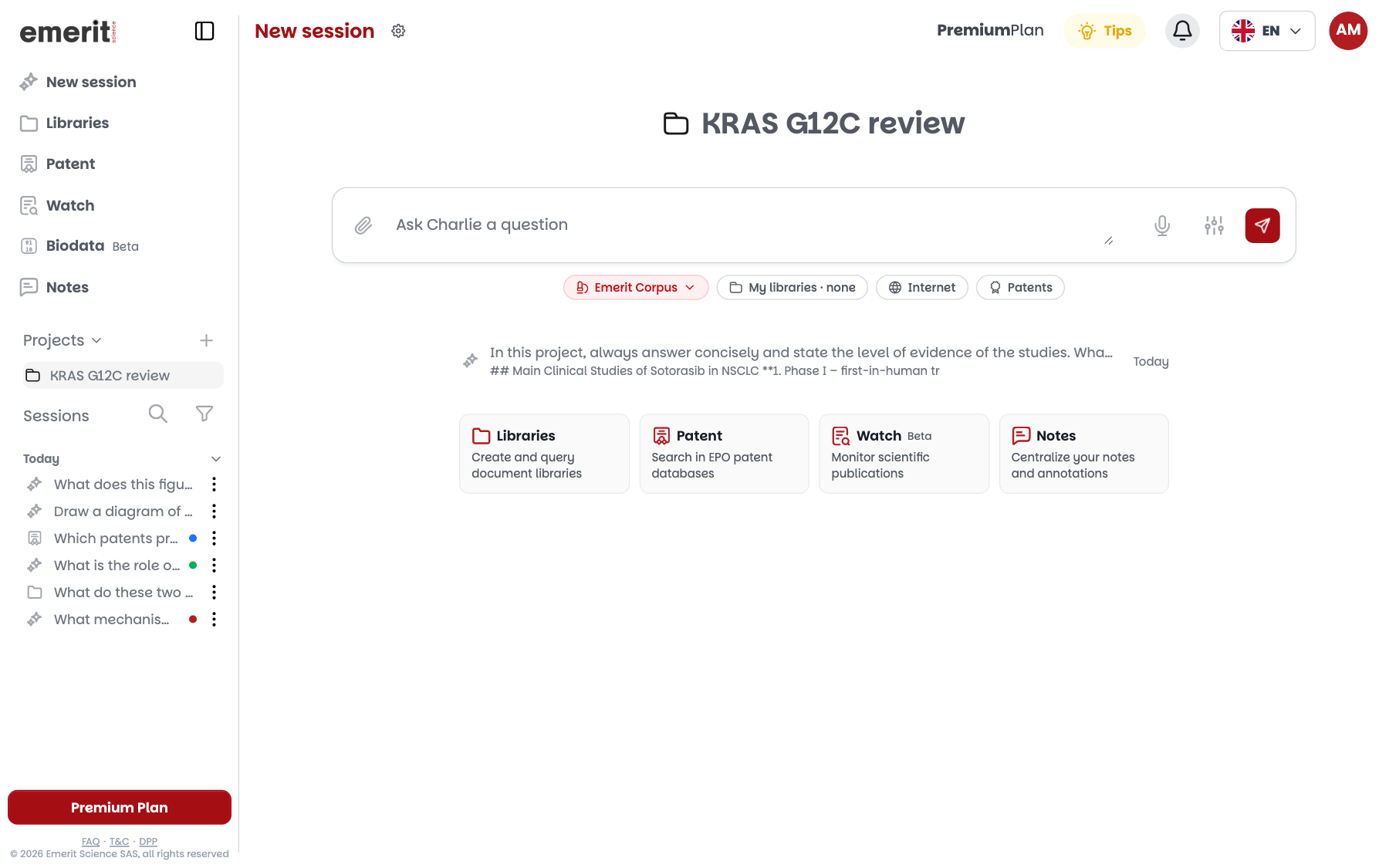
These actions start from the sidebar or from a session's “Actions” menu.
Spot a session by its color
Put a color label on a session to spot it in the list.
- 1Open the session's ⋮ menu in the sidebar, or the “Actions” menu at the top of the session.
- 2On the “Tags” line, click one of the seven colors. A dot of that color appears next to the title.
- 3Click the color again to remove it.
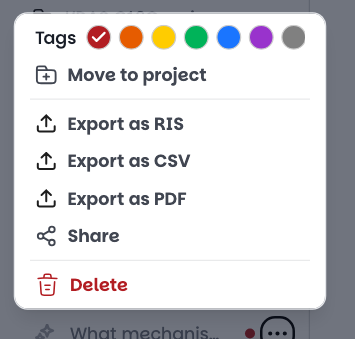
The meaning of the colors is up to you: for example red for what remains to be checked, green for what is ready to cite.
To find a session, use the two icons next to “Sessions”. The magnifying glass searches among your sessions. The funnel (“Filter by tag”) filters by “Color” and by “Session type”, for example Library or Patent.
Take a note in a session
Open the right-hand panel, “Notes” tab, then click “+ Create a new note”.
The panel opens when you click a citation, or the book icon under an answer.
The “Note title” field is required. Write the note, then click “+ Create this note”.
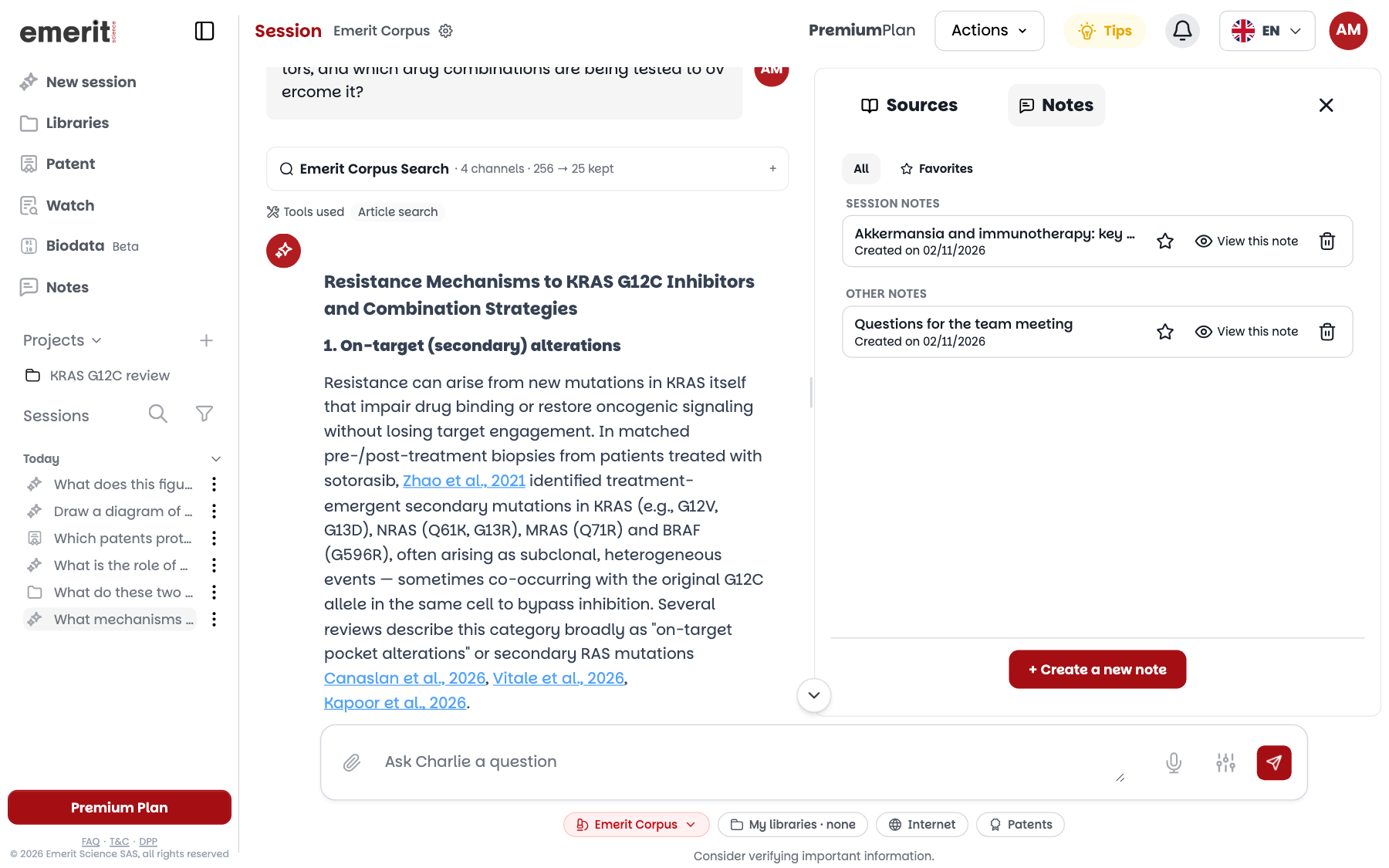
The note stays attached to the session and appears under “Session notes”. Your other notes appear under “Other notes”: this is the only group visible in this screenshot, because the session has no note yet.
“All” and “Favorites” filter the list. The star marks a note as a favorite, “View this note” opens it and the trash can deletes it.
A note is written by hand: to keep an excerpt of an answer, copy it then paste it into the note.
The same panel exists in a watch report, where the note is filed under “Report notes”. See Watch.
Find your notes on the Notes page
The “Notes” page in the menu gathers all your notes, those from sessions as well as those from watch reports.
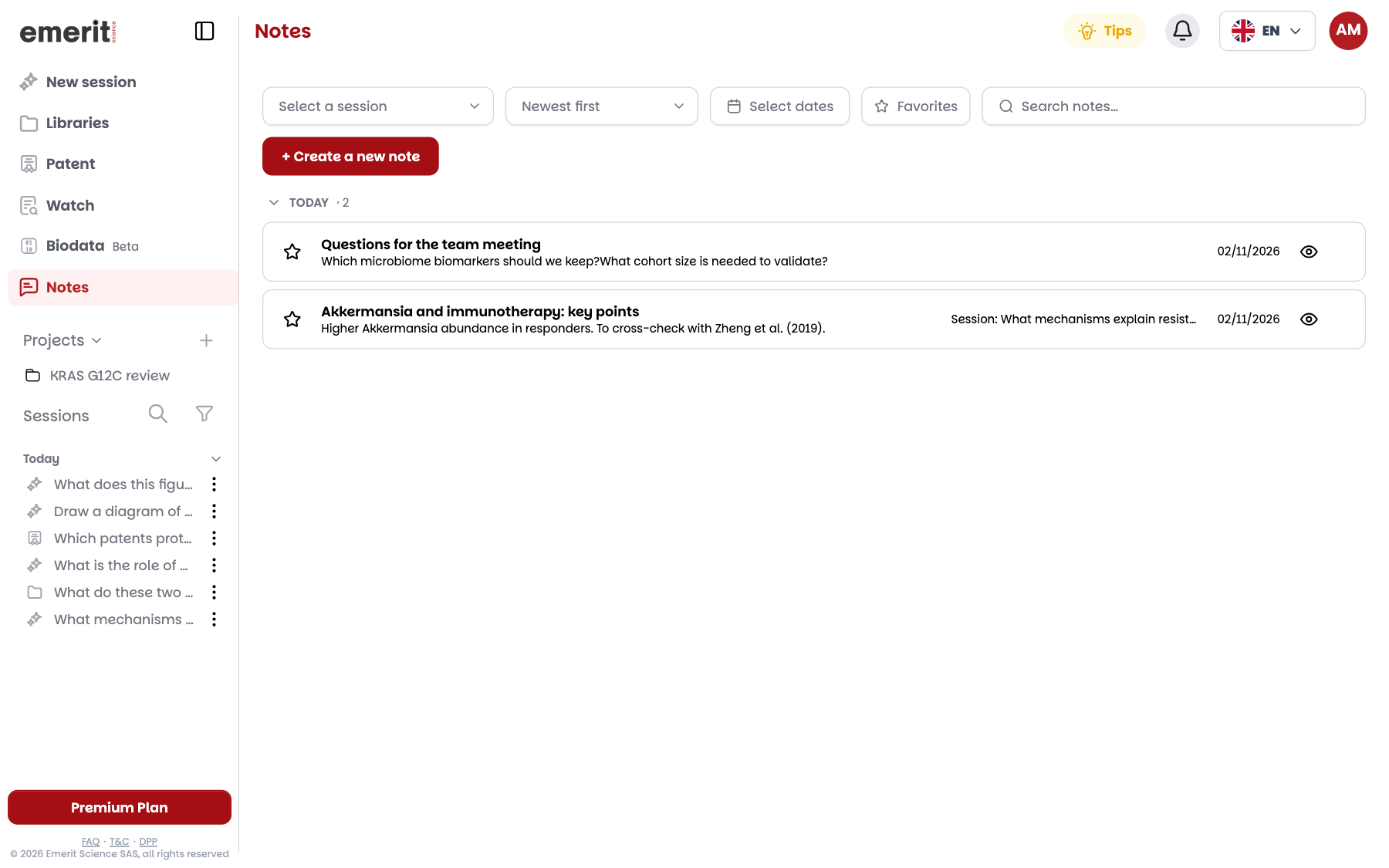
Notes are grouped by date: “Today”, “Yesterday”, “Last 7 days” and “Older”, the latter group being collapsed. Favorites come first, in their own group.
At the top of the page, filter by session, by dates or by favorites, change the sort order and search your notes.
Here, “+ Create a new note” creates a note with no session. The eye-shaped icon reopens a note: your changes are saved when you click “Save”.
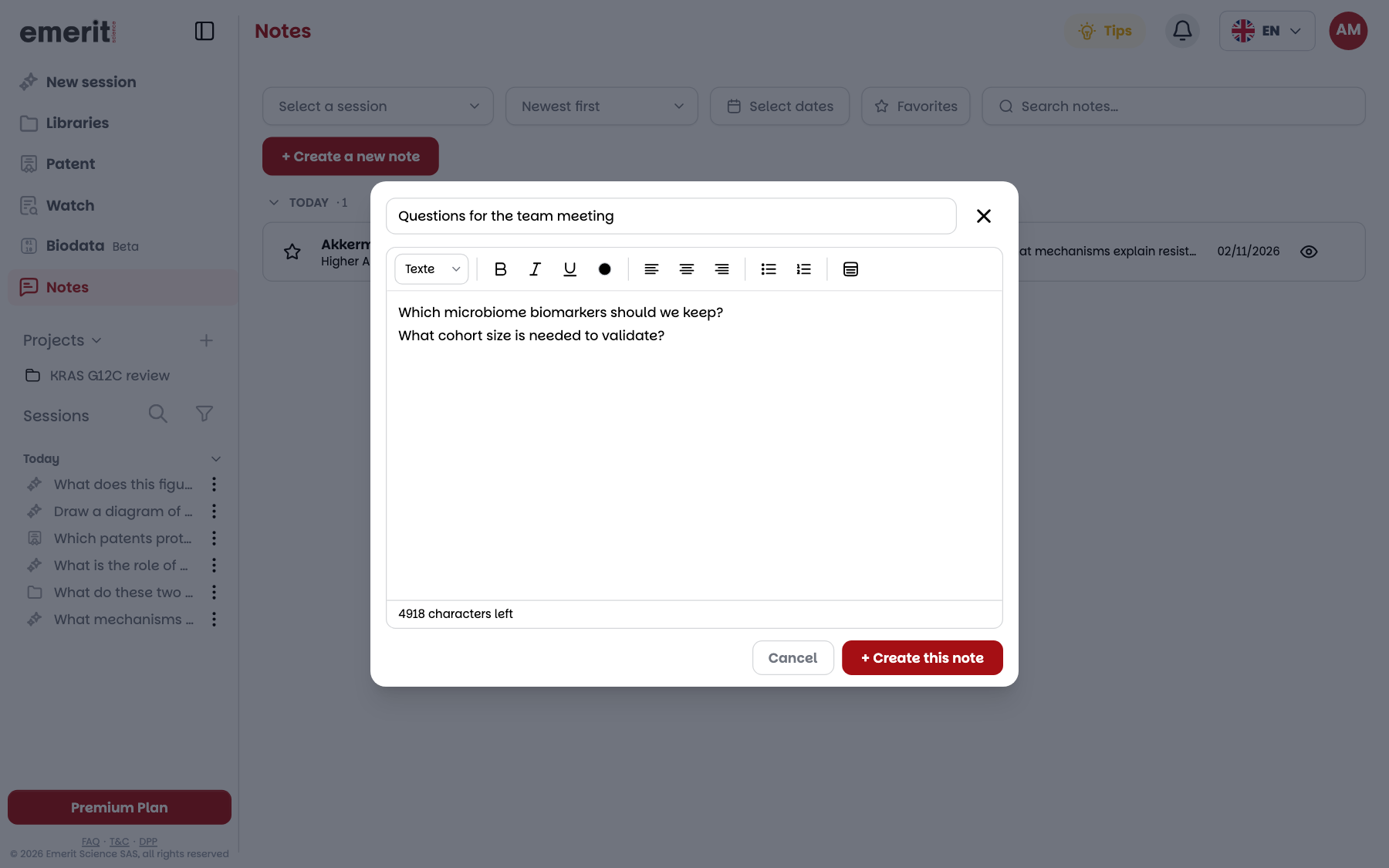
The editor offers headings, bold, italics, underline, text color, alignment, lists and tables. A counter shows the remaining characters.
PDF annotations do not appear here: they stay in the reader, as explained in Reading and annotating PDFs.
Group a piece of research in a project
A project groups the sessions on a single topic and keeps its own memory.
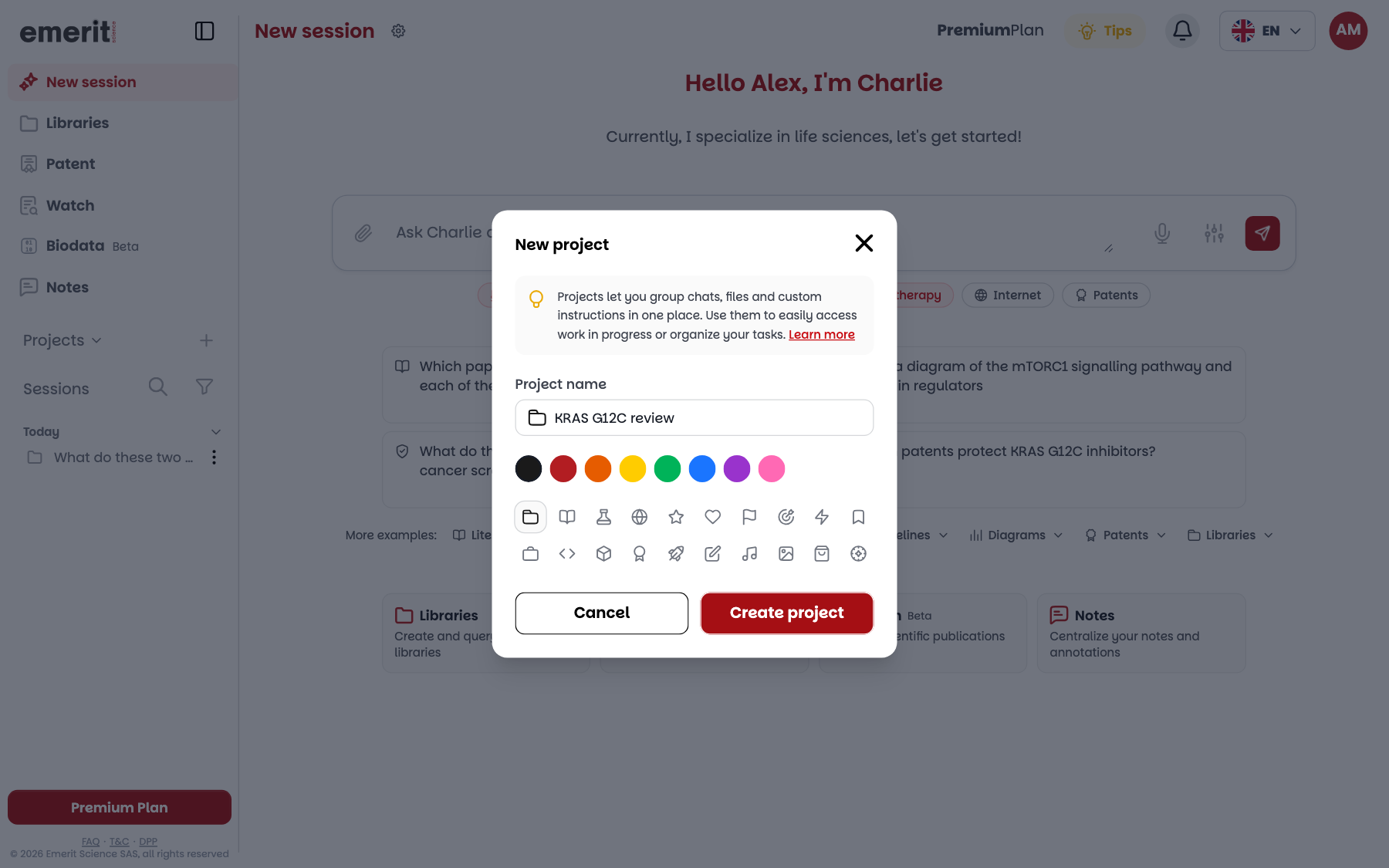
- 1Click the + next to “Projects” in the sidebar.
- 2Enter the “Project name”, choose a color and an icon, then click “Create project”.
- 3The project appears in the “Projects” list. Click its name to open its page.
A question asked from the project page creates a session in that project.
A project contains only sessions. Your libraries, notes and watches stay on their own pages: the cards on the project page lead to them.
Move a session
In the session's ⋮ menu or the “Actions” menu, choose “Move to project”, then the project. You can also drag the session onto a project in the sidebar.
“Remove from project” takes the session out of the project without deleting it.
Deleting a project deletes its sessions
- “Delete”, in the project's ⋮ menu, permanently erases the sessions it contains. Move the ones you want to keep first.
What Charlie remembers about a project
Over the course of a project's sessions, Charlie retains facts drawn from your messages and uses them in the following sessions of that project.
These facts come from what you write or attach, not from its answers. A message does not necessarily produce any.
To set a preference, write it in your question: “In this project, always answer concisely and state the level of evidence of the cited studies.”
To view and correct these facts, open the project's ⋮ menu in the sidebar, then “Manage memory”. The “Project memory” window sorts them into “Topics of interest”, “Preferences”, “Key findings” and “Definitions”.
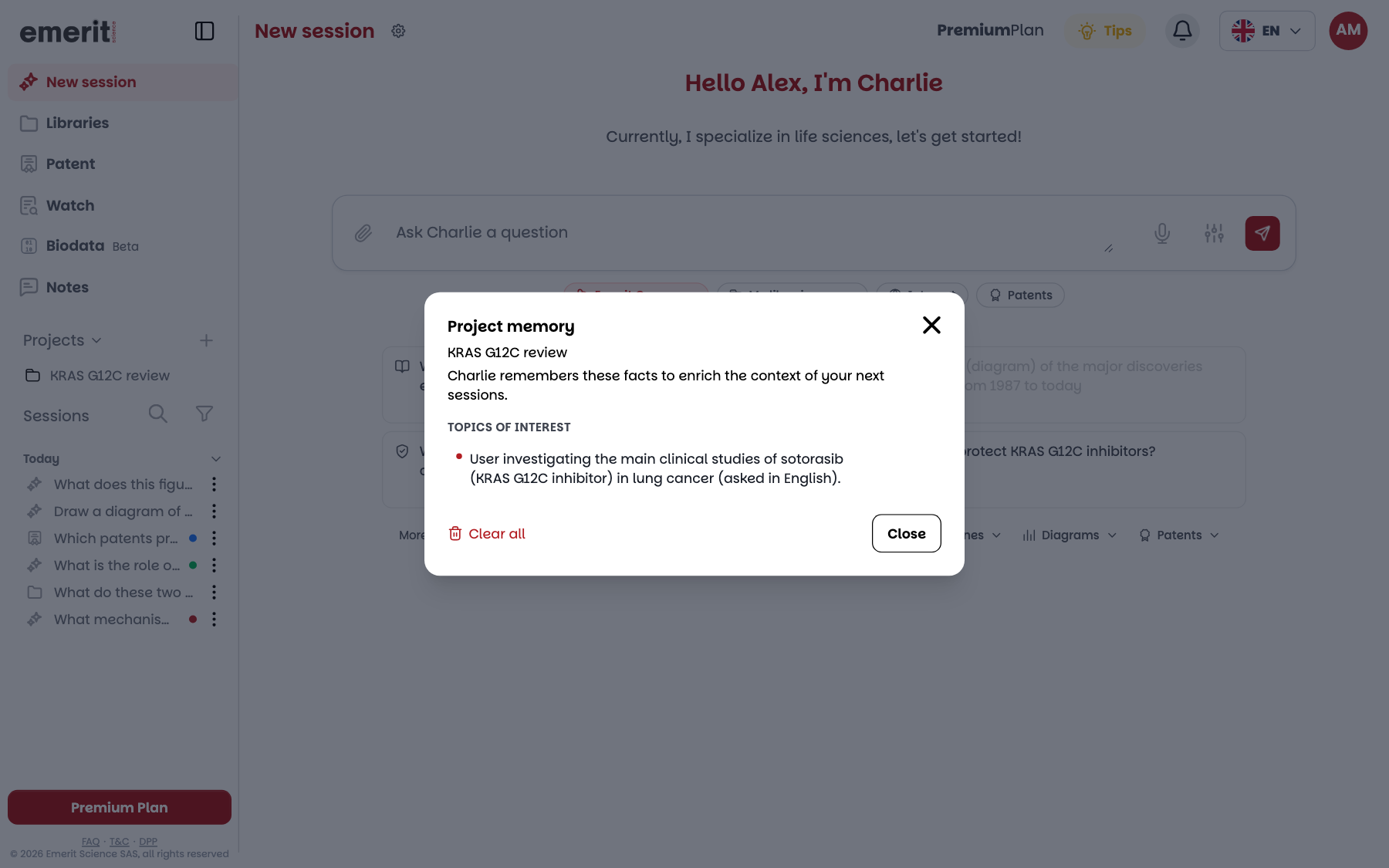
When you hover over a fact, you can edit or delete it. “Clear all” empties the project's memory, with no way back.
The facts are written by Charlie and may be in English, as in this screenshot.
The memory is not read in a session where a library is checked: Charlie reasons over your documents there.
Your profile's memory
Outside a project, Charlie retains the same types of facts in “Charlie's memory”, and uses them in your other sessions.
To view it, open “Account” from your avatar, then click “Manage Charlie's memory”. The facts are sorted there into “Recurring topics”, “Preferences”, “Tracked findings” and “Definitions”, and are edited like those of a project.
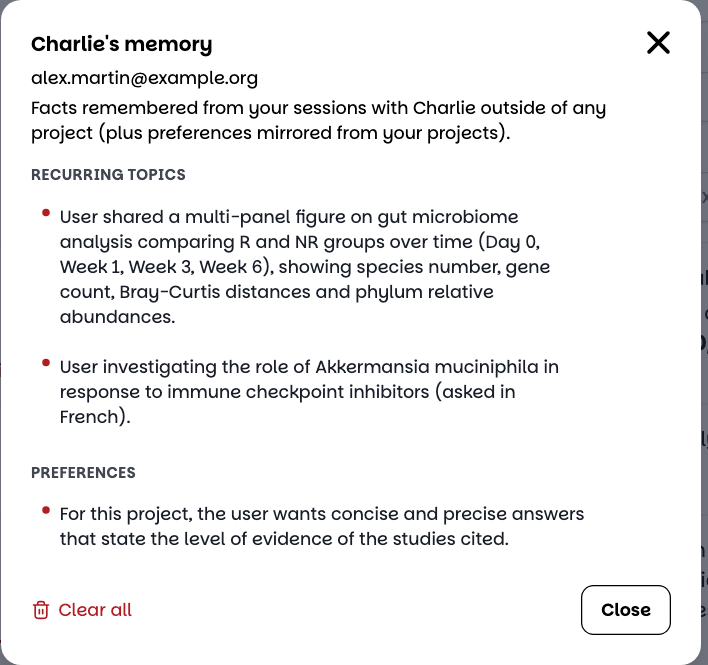
Preferences expressed in a project are also copied there: they then apply to your other sessions. If a preference concerns only one project, delete it here.
In a team, the administrator can disable this memory. Nothing is then memorized anymore, and your existing facts remain viewable and deletable.
Export a session
Open the session's “Actions” menu, or its ⋮ menu in the sidebar, then choose the format.
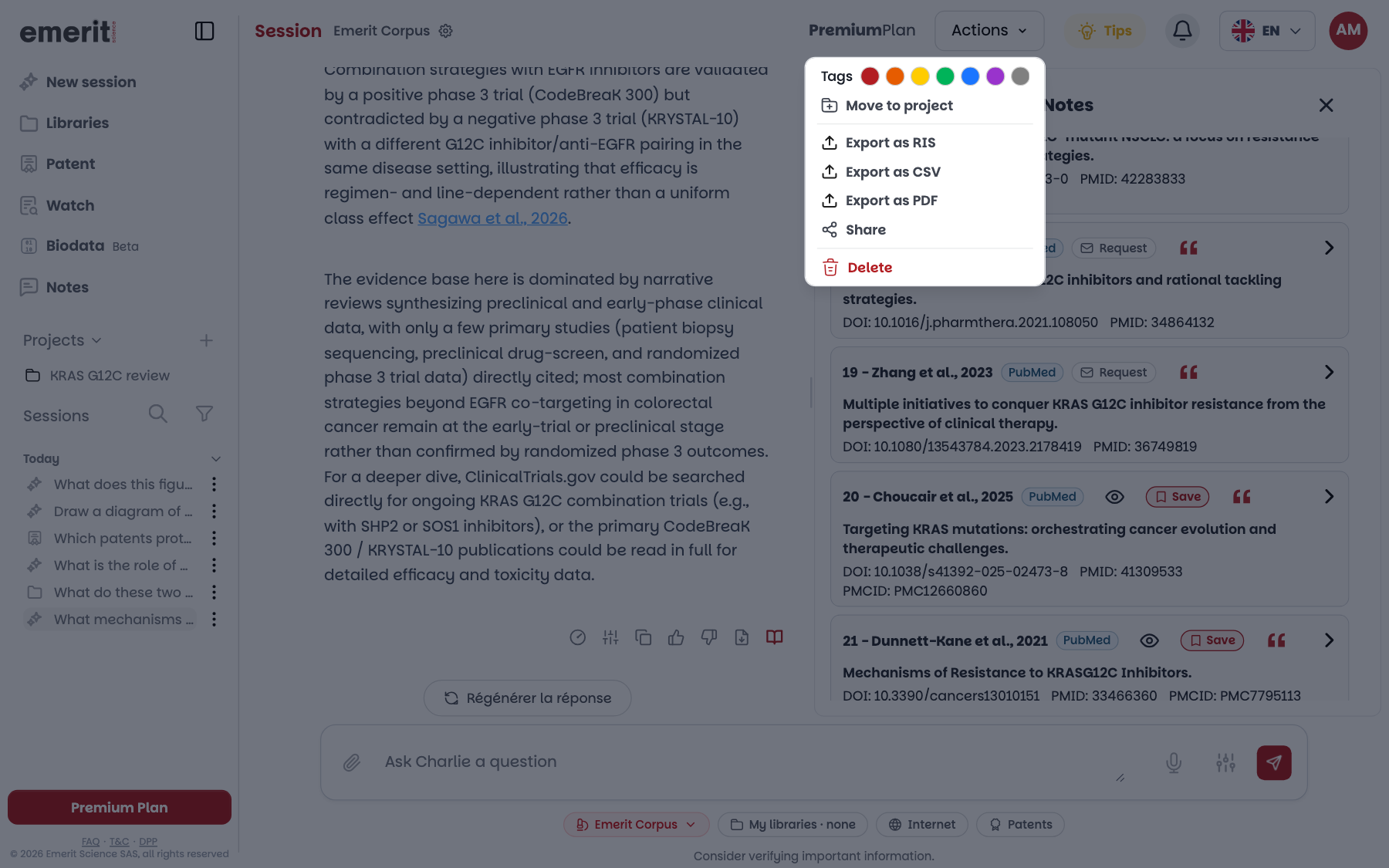
- “Export as RIS” downloads the session's references for a reference manager.
- “Export as CSV” downloads them in a table: title, authors, year, citations, abstract, study type, journal, DOI and PubMed link.
- “Export as PDF” produces a PDF of the session. You choose whether to include “Formatted citations” (AMA, APA, MLA or NLM), “Abstracts” or “Uncited sources”.
Under an answer, the PDF export icon exports only that answer.
The options depend on the session. A session with a library offers only “Export as PDF”. A patent session offers “Export as PDF” and “Share”.
In a team, the administrator can disable PDF export and sharing.
Share a session
Click “Share”: Charlie creates a link to the session, to copy with “Copy link” or to send by email, LinkedIn or Facebook.
The recipient must sign in to Charlie to read the session. “Continue the conversation” creates a copy of it in their account.
Before sharing
- Check that the session contains nothing confidential. To continue confidential work, open another session.
- Reopening the “Share session” window creates a new link: the previous one stops working.
- Deleting the session makes the link unusable.
Organize your next piece of research
Create a project, ask a first question, then note what you want to remember.
Start for Free